AI Mockup Studio for Etsy: Build a Complete Listing Image Set from One Design
About the author

Louplr Team
Louplr Team shares practical guidance from building AI workflows for prompts, artwork, mockups, and listings used in real print-on-demand production.
An AI mockup studio for Etsy helps you turn one finished design into a set of product images that do different jobs. The first image gives shoppers a clear view of the item; the rest can show scale, detail, and how it might fit into a real space. The goal is not to make as many images as possible. It is to answer the questions that could keep someone from clicking or buying.
That distinction matters because a polished room scene can still be a poor product image if it changes the artwork, hides the product, or suggests a size or material you do not sell. A useful workflow combines visual variety with a careful check that every image still represents the real item.
Below is a practical way to plan an Etsy listing image set from one design, choose between a generated scene and controlled placement, and review the results before publishing.
What an Etsy Mockup Image Set Needs to Show
A mockup is more than decoration around your artwork. It gives a shopper context: what the product looks like, how large it feels, where it could be used, and which details are worth a closer look. One image rarely answers all of those questions well, especially when the first view is a styled room scene.
Before generating anything, decide what a buyer needs to understand about this specific listing. A digital print, a framed poster, a T-shirt, and a set of printable files all need different supporting visuals. Do not use the same image sequence for every product just because the artwork is the same.
- A lead image that makes the product and its main design easy to recognize at a small size.
- A clean view of the artwork or product, without room decor competing for attention.
- A context image that helps communicate scale, placement, or intended use.
- A close-up when line work, texture, color, or another detail matters to the purchase.
- A second scene or angle only when it adds useful information rather than repeating the first image.
- A clear file, size, or variant explanation for digital products and configurable physical items.
Treat that list as a planning guide, not a required image count. Use the listing slots available to you, but make each image earn its place. If two scenes answer the same question, keep the clearer one and use the space for a detail buyers have not seen yet.
How to Build a Listing Image Set from One Design
A repeatable process makes it easier to create a coherent gallery without turning every design into a separate photo shoot. Start with the item you are actually selling, then plan the images around the information a buyer needs.
1. Start with the product and the buyer
Write down the product type, the intended buyer, and one or two details that need to be obvious. For wall art, those might be the room style and the print's proportions. For apparel, they might be the garment color and where the design sits. For a digital download, buyers need to understand that the room image is a preview and which files they will receive.
This small brief keeps the scene from taking over. A nursery print can sit in a calm child's room; a bold poster can be shown above a desk or sofa. The setting should make the product easier to imagine in use, not introduce a different product story.
2. Give every image a job
Sketch a short sequence before you generate. For example, the first image can establish the design, the next can show the full product, and another can answer a scale or detail question. If a digital listing includes several file ratios or a bundle, reserve a visual for explaining what is included instead of making another nearly identical room scene.
3. Choose generated staging or controlled placement
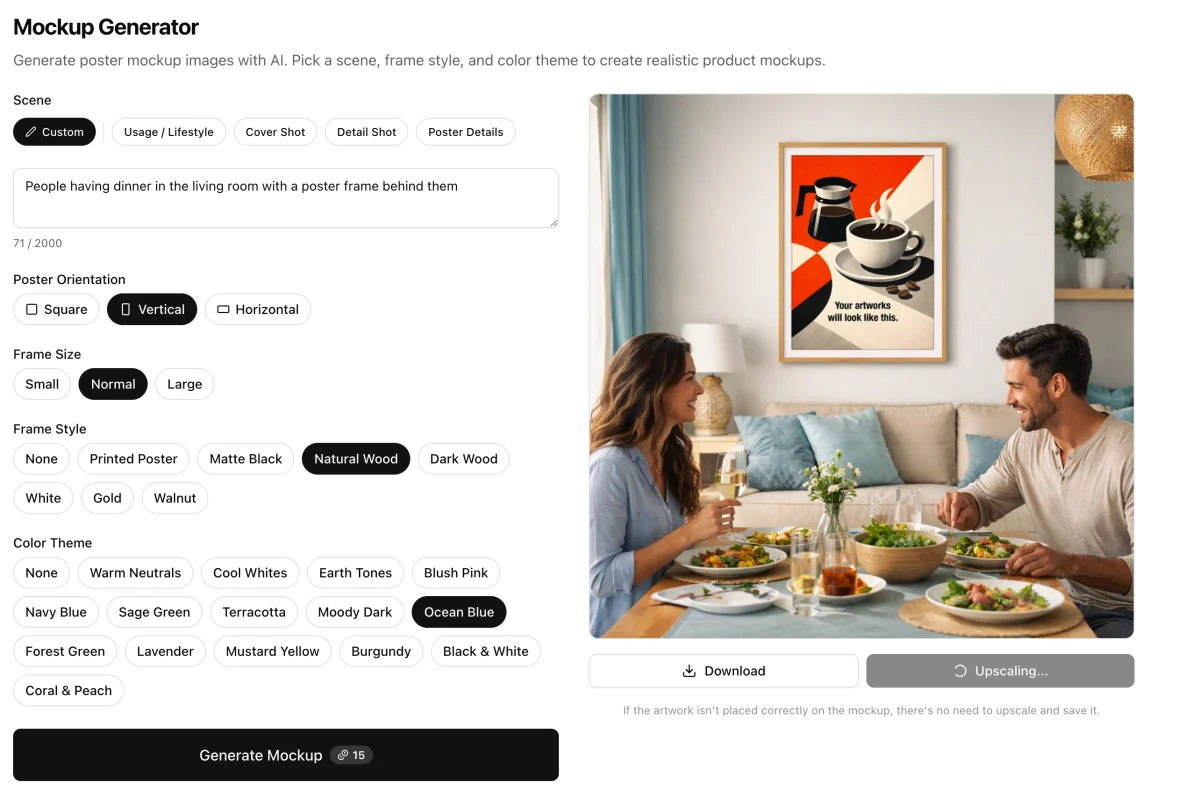
Use a generated scene when the room, lighting, or styling helps a buyer picture the product in context. Use an existing product mockup when accurate placement and a consistent product shape matter more than a new setting. Louplr's Mockup Generator creates new poster scenes from a prompt or saved pack, while Mockup Placer is designed for placing artwork onto an existing mockup.
These approaches solve different problems. A generated scene can add variety, but image models may reinterpret fine lines, lettering, borders, or colors. A placement workflow starts with a prepared mockup and gives you a more controlled base. If the exact product finish, dimensions, or color is important, compare the result with a real product photo or an accurate template before using it.
Explore Louplr's AI Mockup Generator
Explore Louplr's Mockup Placer
4. Make variations with a reason
When you create several scenes from one design, change one variable at a time. Keep the artwork and product consistent while trying a different room, camera distance, or lighting setup. That makes it easier to compare results and helps the gallery feel like one product story rather than a collection of unrelated AI images.
Saved mockup packs can help maintain a visual direction across a group of products. They are most useful when the scenes fit the shop and the product category. A reusable pack is a starting point, not a reason to put every design into the same room.
5. Review each image at thumbnail and full size
First shrink the image to the size a shopper is likely to see in a search or shop grid. Is the product still obvious? Does the artwork stand apart from the background? Then inspect the full image for details an AI scene can get wrong.
- Compare the artwork with your original file. Look for changed colors, missing details, distorted text, or altered cropping.
- Check the product's shape, proportions, frame, garment, and visible edges.
- Make sure props do not cover the item or make its size hard to judge.
- Remove variations with strange geometry, extra artwork, or details that are not part of the product.
- Confirm that every stated size, finish, color, or included item matches what the listing offers.
If an image looks attractive but gives the wrong impression, do not use it as proof of the product. A mockup can be aspirational without being misleading. For digital downloads, make it especially clear which parts of the image are a room preview and which files the buyer will actually receive.
A Simple Prompt Framework for Etsy Mockup Scenes
A useful scene prompt describes the setting and framing, not a new version of the artwork. If the tool lets you select the design separately, keep the design itself out of the scene description and focus on the product presentation.
- Product and orientation: name the item and whether it is portrait, landscape, or square.
- Placement: say where the product sits and what should remain fully visible.
- Room or surface: choose a setting that fits the likely buyer and use case.
- Camera and light: describe the viewing angle, distance, and kind of light.
- Styling limits: mention what should stay out of the way, such as extra artwork, text, or props covering the product.
Example scene prompt: Photorealistic mockup of a portrait framed botanical print above a light oak console in a calm, sunlit living room. Show the full frame straight on with clear space around it, soft natural light, a warm neutral wall, and restrained decor. Keep the supplied artwork's colors and proportions unchanged. No extra artwork, text, or logos.
A prompt cannot guarantee that every detail will render correctly. Treat it as direction for the scene, then inspect the generated image against the actual item. When fidelity is more important than creative staging, switch to an existing mockup or product photo.
Mockup Mistakes That Make a Listing Less Clear
- Using several images with the same angle and background, so the gallery feels repetitive.
- Choosing a dramatic room scene that makes the artwork or product hard to see at a glance.
- Showing a frame, accessory, or finish that is not included with the item.
- Relying on a generated close-up when it changes the design's line work or typography.
- Using a room style that clashes with the product's intended audience or the rest of the shop.
- Leaving buyers to guess whether they are purchasing a physical product, a digital file, or both.
A clear listing gallery does not need to look like a professional photo studio. It needs to be consistent, easy to understand, and honest about what arrives after checkout. When you are unsure between a more dramatic image and a more accurate one, accuracy should win.
Using Louplr to Create the Set
In Louplr's Mockup Studio, choose a saved design, then decide whether to place it on an existing mockup or create a new scene. A saved pack can give several designs a shared setting; custom scene prompts are useful when a product needs a more specific context. Generate a few purposeful options, review them against the source artwork, and keep only the images that represent the listing accurately.
If you want a click-by-click walkthrough of the generator, continue with the Louplr Mockup Generator tutorial. The process in this article is about planning the gallery and checking its accuracy, so the tool supports the product story instead of becoming the story.
Read the Louplr Mockup Generator tutorial
Final Checks Before You Upload
- Check the current Etsy image requirements and the image dimensions for your product type.
- Make sure the first image communicates the item clearly at a small size.
- Review generated scenes against the exact artwork, product, and variants you sell.
- Use later images to answer new questions about scale, detail, format, or what is included.
- Keep the same visual direction across related listings without repeating the same image sequence.
- Read the listing as a buyer and remove anything that could create a false expectation.
A strong mockup set is a practical part of the listing, not a shortcut around product clarity. Begin with one design, build a small sequence with a purpose, and publish only the scenes that pass a careful review.
AI Mockup Studio for Etsy FAQ
- What is an AI mockup studio for Etsy?
- It is a workspace for presenting a design on product scenes or prepared mockups. Sellers use it to create listing visuals that show the item, its context, and useful details. The best workflow still includes a manual check that the images match the product being sold.
- Can I use AI-generated mockups in an Etsy listing?
- Use images that accurately represent the item and follow Etsy's current listing-image and disclosure requirements. Generated scenes can be useful for context, but do not present an altered product detail, size, finish, or included accessory as a real feature.
- How many mockup images should I add to an Etsy listing?
- There is no useful fixed count for every product. Use the available image slots for distinct information: a clear main view, scale or context, close-up details, and product or file information where relevant. Check Etsy's current listing limits and avoid repeating the same view.
- Can an AI mockup change my artwork?
- Yes. Image generation can reinterpret small text, fine lines, edges, colors, or proportions. Compare each output with the source design at full size. If exact artwork placement matters, use a prepared mockup or product photo instead of relying on a generated scene alone.
- What is the difference between a mockup generator and a mockup placer?
- A mockup generator creates a new product scene from a prompt or a saved scene. A mockup placer applies your design to an existing mockup image. Use generation for more scene variety and placement when you want a prepared product view as your starting point.
Create listing scenes that help buyers understand the product
Explore the Mockup GeneratorStart with one design, then review every image against the item you actually sell.