
How to Create Etsy Mockups That Show Product Scale, Texture, and Room Context
About the author

Louplr Team
Louplr Team shares practical guidance from building AI workflows for prompts, artwork, mockups, and listings used in real print-on-demand production.
Good Etsy mockups do more than make a product look attractive. They help shoppers judge how large it is, what its surface or artwork looks like up close, and how it might fit into a room. A useful mockup makes those details easier to understand without suggesting a size, finish, or included item that the buyer will not receive.
That balance is especially important for wall art. A styled room can make a print feel inviting, but perspective can make the frame look larger or smaller than it is. An AI-generated close-up can add convincing paper grain that is not part of the product. The scene may be beautiful and still leave the buyer with the wrong impression.
This guide focuses on the visual job behind three kinds of Etsy mockups: scale, detail, and room context. The examples use wall art, but the same checks help with other print-on-demand products.
What Scale, Texture, and Room Context Tell a Buyer
Scale: show proportion, then state the measurement
A print shown above a sofa gives a quick sense of proportion. It does not prove the print's exact dimensions. Camera angle, lens perspective, furniture size, and the frame's position on the wall can all change how large the artwork appears.
Use a room scene to help shoppers imagine the product in their space, then give exact measurements separately. If a listing offers more than one size, show the options clearly or use accurate product variants. Do not ask an AI scene to serve as a measurement diagram.
Texture: distinguish the artwork from the material
A close view can reveal brush marks, fine lines, or color transitions in the artwork. For a physical product, it may also help buyers understand the paper, fabric, or finish. Those are different kinds of detail, and a generated scene can easily blur the distinction.
If a material finish matters, use a photo of the actual product or a reliable provider mockup. Do not rely on a generated close-up to prove that a print is textured, glossy, matte, or canvas if you have not verified that finish. For a digital download, describe the file and show a crop of the artwork; avoid implying that a physical surface is included.
Room context: help shoppers picture where it belongs
A room scene connects a design to a use case. A quiet reading corner can suit a soft botanical print; a bright desk area may make a graphic poster feel at home. Keep the artwork easy to see, choose decor that supports its audience, and avoid filling the scene with props that compete for attention.
The room is inspiration, not a promise that the buyer will receive the furniture, frame, or accessories shown around the product. Make the item for sale unmistakable in the listing and in the image sequence.
A Practical Mockup Sequence for Wall Art
Instead of making every image a different room, give each view a clear purpose. A focused sequence for a poster or art print can include:
- A clean, straight-on view where shoppers can see the full artwork and frame or print edge.
- A room scene that gives a sense of placement and proportion without being treated as an exact size reference.
- A detail crop of the artwork itself, especially when small marks, color, or line work are important.
- A real product or provider image if buyers need to judge paper, fabric, frame, or another physical finish.
- A separate size or variant graphic using the actual dimensions offered in the listing.
You do not need all of these for every product. Choose the views that answer real questions. A digital file may need a clear preview and a file-inclusion graphic, while a physical poster may benefit from a verified product photo as well as a room scene.
How to Create Mockups That Stay Believable
1. Gather the product facts first
Before writing a prompt, note the real product type, available sizes, orientation, materials, finish, and what is included. Use the details from your print provider or your own product sample. If a fact is unknown, leave it out of the visual claim rather than letting the scene invent it.
2. Separate context from proof
A generated room can communicate mood and placement. A measured graphic communicates dimensions. A close-up from a product sample communicates real surface detail. Use the right kind of image for each claim instead of expecting one mockup to do everything.
3. Keep the scene prompt specific
Describe the room, camera angle, lighting, and what must remain visible. Avoid asking the image model to invent a paper finish or exact physical measurement. If you use a reference image or prepared mockup, check that the generated scene has not changed the frame, artwork, or proportions.
4. Compare the result with the source
Review the full image, not just the thumbnail. Compare the artwork with the original file and check the product edges, color, frame, and perspective. If the image is intended to show a particular variant, confirm that the variant is the one displayed.
Prompt Examples for Scale, Detail, and Context
For a room scene, describe the environment and composition rather than relying on a prompt to guarantee exact dimensions. For example: Stage the supplied portrait art print on a calm, warm-white living room wall above a low oak console. Show the whole frame straight on with open wall around it, soft daylight, and minimal decor. Keep the artwork's colors and proportions unchanged; do not add text or extra art.
For a scale cue, use a prepared product mockup or real photo where the frame sits beside familiar furniture. A prompt can request a sofa or desk in the same view, but perspective can still distort the relationship. Add the actual measurements as listing information or in a separate graphic.
For a detail image, start with the original artwork or a real product sample. A crop of the artwork can show line work and color without making claims about paper. If you need to show a physical finish, photograph the material or use an accurate supplier image instead of generating a texture that only looks plausible.
When to Use an AI Scene, a Mockup Template, or a Product Photo
Use an AI-generated scene when the room setting is the main point and small variations in decor are acceptable. Use a prepared mockup when you want more control over how artwork sits in a frame or on a product. Use a real product photo when a buyer needs evidence of a specific finish, fabric, paper, or physical detail.
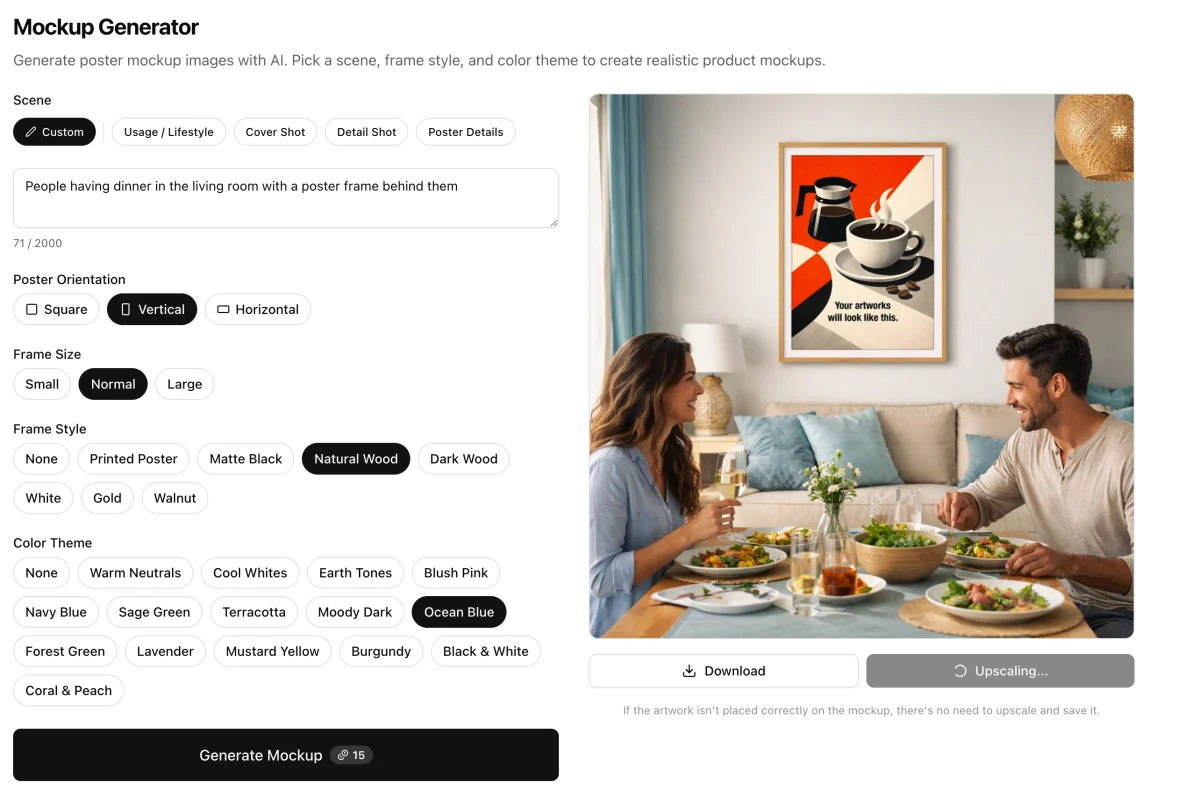
Louplr's Mockup Generator is designed for creating poster scenes with choices such as scene, frame style, and color theme. Mockup Placer is useful when you want to place artwork onto an existing mockup image. In either case, compare the result to your original art and the product you sell before adding it to a listing.
Explore Louplr's AI Mockup Generator
Explore Louplr's Mockup Placer
A Quick Review Before You Publish
- Can a shopper tell what the product is at a glance?
- Are dimensions stated separately from visual scale cues?
- Does every material or finish shown match the physical product?
- Has the artwork kept its original proportions, colors, and important details?
- Are the room props clearly separate from what the customer will receive?
- Does each image add information instead of repeating another view?
For a complete plan for sequencing all the listing images, see our guide to building an Etsy image set from one design. This article goes deeper on the three visual signals that make those images easier to trust: scale, detail, and context.
Read the AI Mockup Studio guide to planning a complete Etsy image set
Etsy Mockups for Scale, Texture, and Room Context FAQ
- Can an AI mockup show the exact size of my Etsy product?
- Not reliably by itself. Perspective, furniture scale, and scene generation can change how large an item appears. Use a room scene for context, then state the real dimensions or add a separate size graphic based on the product details.
- How do I show the texture of a print in an Etsy listing?
- Use a close crop of the artwork to show its visual detail. To show paper, fabric, or another physical finish, use a photo of the actual product or a verified supplier image. Do not let a generated scene imply a material that is not included.
- Are room mockups enough to explain a wall art listing?
- Usually not. A room scene helps with placement and mood, but shoppers may also need a clean view of the artwork, actual dimensions, and information about the frame or files included.
- Can I use AI-generated mockups on Etsy?
- Check Etsy's current image, disclosure, and product requirements before publishing. Any mockup you use should accurately represent the item and should not suggest unincluded accessories, a different size, or a finish you do not sell.
- Should I use a mockup generator or a mockup placer?
- Use a generator when you need a new scene or room setting. Use a placer when you want to position the artwork on an existing mockup image. For exact physical details, a real product photo may be the better choice.
Create a room scene, then check every detail against the product
Explore the Mockup GeneratorUse mockups for context and keep measurements and materials accurate.