AI Mockup Generator for Etsy: Create Product Scenes from a Prompt or Saved Pack
About the author

Louplr Team
Louplr Team shares practical guidance from building AI workflows for prompts, artwork, mockups, and listings used in real print-on-demand production.
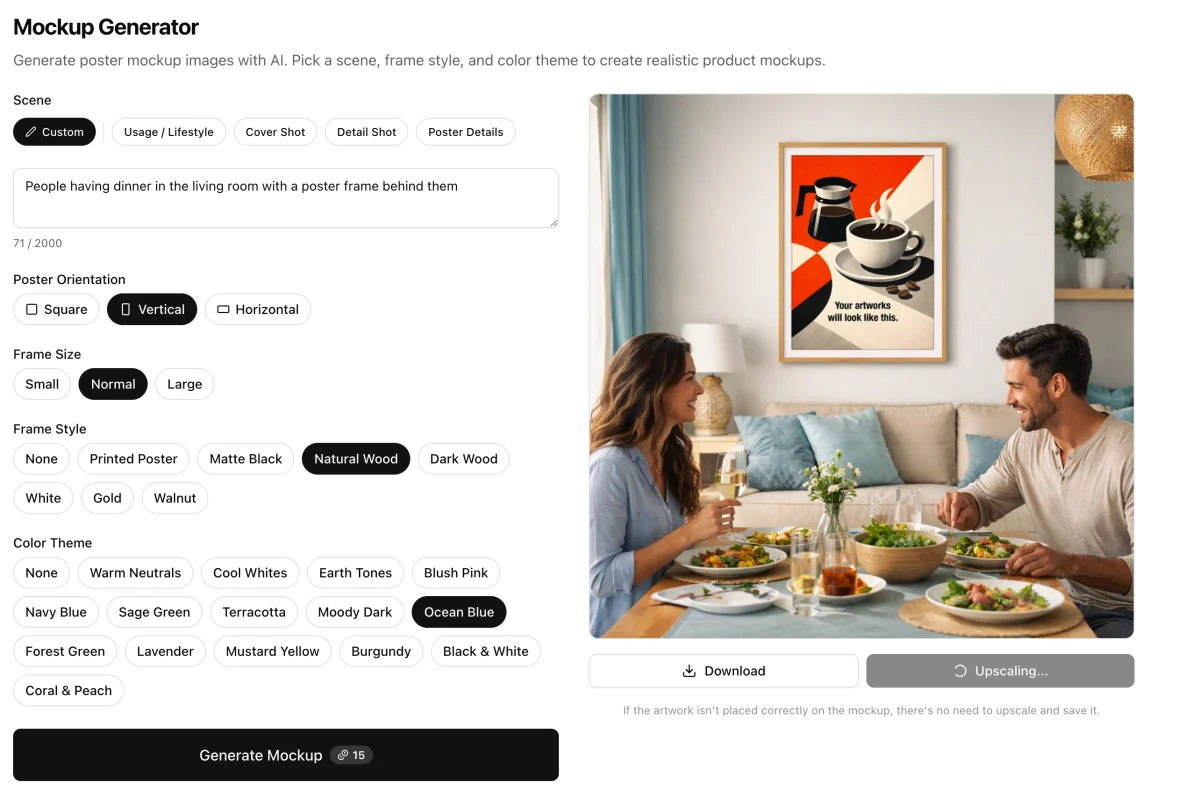
An AI mockup generator for Etsy can create a new product scene from a written prompt or reuse a saved mockup pack of scene prompts. Use a custom prompt when one listing needs a specific setting. Use a saved pack when you want several designs to share a visual direction. In both cases, the artwork and product still need a careful review before the image goes into a listing.
The scene prompt is not the product description. It tells the image model how to present the product: where it sits, how the camera sees it, what kind of light is in the room, and which details should stay visible. A clear prompt gives the generator less room to invent an unrelated composition.
Custom Scene Prompt or Saved Mockup Pack?
Choose based on how repeatable the image set needs to be. A one-off scene can be a good way to test a product idea or show a particular use case. A saved pack is useful when a group of listings should feel related, or when you want to generate multiple scene variations without rewriting every prompt.
- Use a custom scene prompt for a distinct room, seasonal setting, or composition that is not covered by your saved scenes.
- Use a saved mockup pack for a repeatable set of related scenes across a collection.
- Start with one scene when you are testing a visual direction; add more only if they answer a new buyer question.
- Keep the product and artwork consistent when comparing scenes so you can judge the setting rather than several changes at once.
A pack does not automatically make every result look coherent. The prompts still need a shared point of view, and individual outputs can vary. Review each generated image instead of assuming the whole pack is ready to publish.
How to Write a Clear Mockup Scene Prompt
Write the prompt around the scene, not a long list of adjectives. Include the product, its placement, the room, the camera view, and the light. Then add one or two limits that protect the design, such as keeping the full frame visible or avoiding extra artwork.
- Name the product and orientation, such as a portrait framed poster.
- Choose one setting that makes sense for the buyer and product.
- Describe the camera angle and how much of the product should be visible.
- Set the lighting and a small number of decor details.
- Add constraints for accuracy, such as no extra text or artwork and no change to the supplied design.
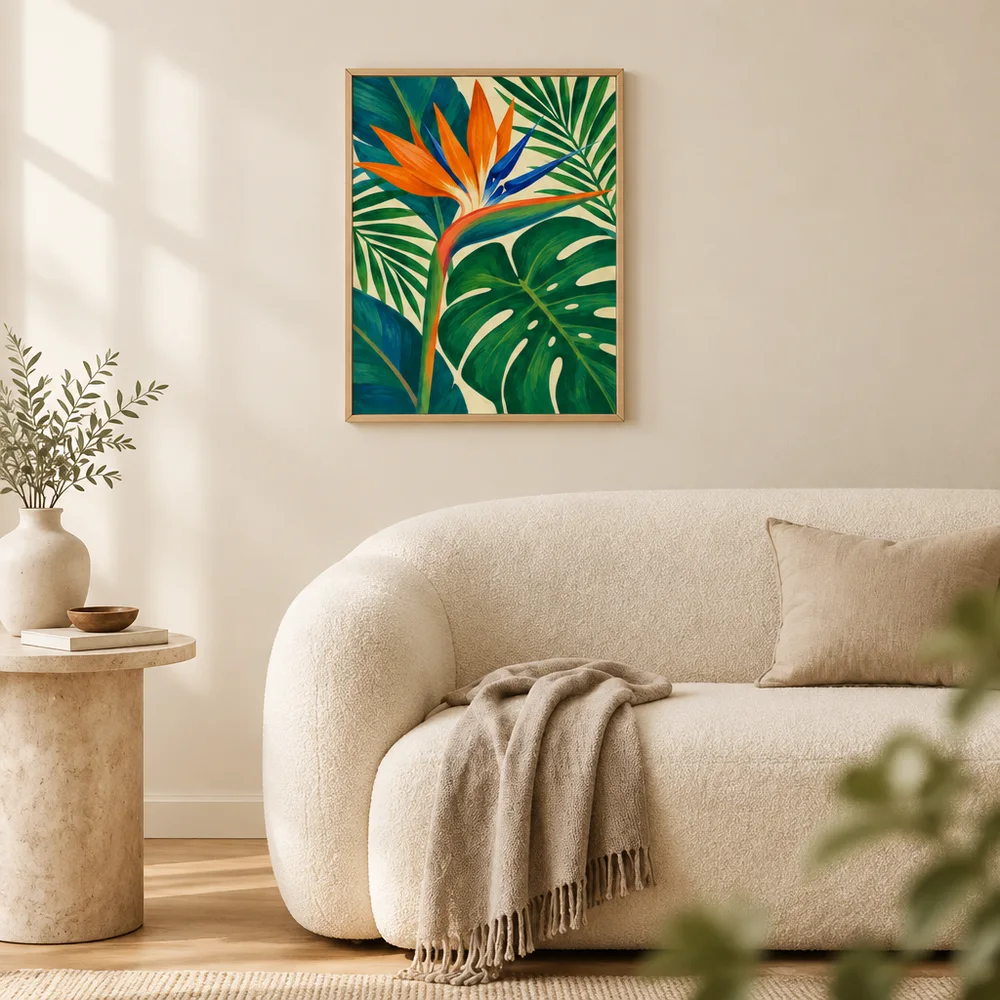
For example: Stage the supplied portrait poster on a warm white wall above a simple oak console in a quiet reading nook. Show the full frame straight on, with natural window light and uncluttered decor. Keep the artwork's colors and proportions unchanged. Do not add another print, lettering, or a logo.
That prompt describes the room and composition, but it cannot guarantee that the model will preserve every pixel of the artwork. Treat the result as a generated scene to inspect, not as proof that the product will look exactly like the render.
Create a Small Set of Useful Scene Variations
If you are testing scenes for one Etsy product, change one thing at a time. Keep the artwork, product, and general framing steady while you try a different room, wall color, or viewing distance. This makes comparisons more useful and helps you spot which setting makes the item easiest to understand.
For a collection, decide what should remain consistent before you save a pack. You might keep the frame, camera angle, and light similar while changing the room styling. Or you might keep the room but vary close, medium, and wide views. Either approach can work; a pack is most useful when its prompts have a deliberate relationship.
When a Saved Pack Is More Useful Than a Custom Prompt
A saved mockup pack is a practical choice when you have several pieces that belong together. It gives you a reusable starting point for the same kinds of rooms or scenes, so the collection can feel curated without putting every design into an identical image.
Custom prompts are better for exceptions: a product that needs a special setting, an image that explains an unusual use, or a scene that does not belong in the standard pack. Keep those exceptions limited. If every product has a completely different visual language, buyers may have a harder time recognizing the collection as one shop.
Use the Right Mockup Workflow for the Product
Louplr's public Mockup Generator is designed for poster scenes and offers choices such as the scene, frame style, and color theme. In Mockup Studio, product mockups can also use a custom scene or saved mockup pack for a selected product. If you already have a product mockup image and want to place artwork on it, Mockup Placer is the more direct workflow.
Explore Louplr's AI Mockup Generator
Explore Louplr's Mockup Placer
For a more detailed walkthrough of the tool itself, read the existing Louplr Mockup Generator tutorial. For a broader plan for sequencing listing images, see the guide to building a complete Etsy image set from one design.
Read the Louplr Mockup Generator tutorial
Read the guide to planning a complete Etsy image set
Review Every Generated Mockup Before Publishing
- Compare the artwork with the original file for changed colors, edges, lettering, or proportions.
- Check the product shape, frame, and visible details against the item you actually sell.
- Make sure the scene does not add an accessory or feature that is not included.
- View the image small to see whether the product remains easy to recognize.
- Remove near-duplicate scenes that add no useful information to the listing.
A generated scene can make a listing more expressive, but clarity matters more than novelty. Keep the images that help buyers understand the product and discard the ones that only look different.
AI Mockup Generator for Etsy FAQ
- What should I include in an Etsy mockup prompt?
- Describe the product, its placement, the room or surface, camera angle, lighting, and what must remain visible. Keep the prompt focused on the scene. Review the image afterward because a prompt cannot guarantee perfect product or artwork fidelity.
- When should I use a saved mockup pack?
- Use a saved pack when you want a repeatable set of related scenes across several designs. It can help maintain a shared visual direction, but each output still needs to be checked for accuracy and usefulness.
- Can an AI mockup generator preserve my artwork exactly?
- Not always. Image models may alter fine lines, text, borders, color, or proportions. Compare each result with the original artwork and use a prepared mockup or product photo when exact details are essential.
- Does Louplr's public Mockup Generator make scenes for every product type?
- The public Mockup Generator focuses on poster scenes. Louplr's Mockup Studio also includes product mockup workflows for saved products, while Mockup Placer is designed to place artwork on an existing mockup.
- Should I publish every variation from a mockup pack?
- No. Choose the images that provide distinct information and accurately represent the product. Remove repeated angles and any output that changes an important detail.
Build a scene that supports the product, not distracts from it
Explore the Mockup GeneratorTry a focused scene prompt, then compare the result with the artwork you will sell.