Mockups for Digital Downloads: Preview Printable Art in Real Spaces
About the author

Louplr Team
Louplr Team shares practical guidance from building AI workflows for prompts, artwork, mockups, and listings used in real print-on-demand production.
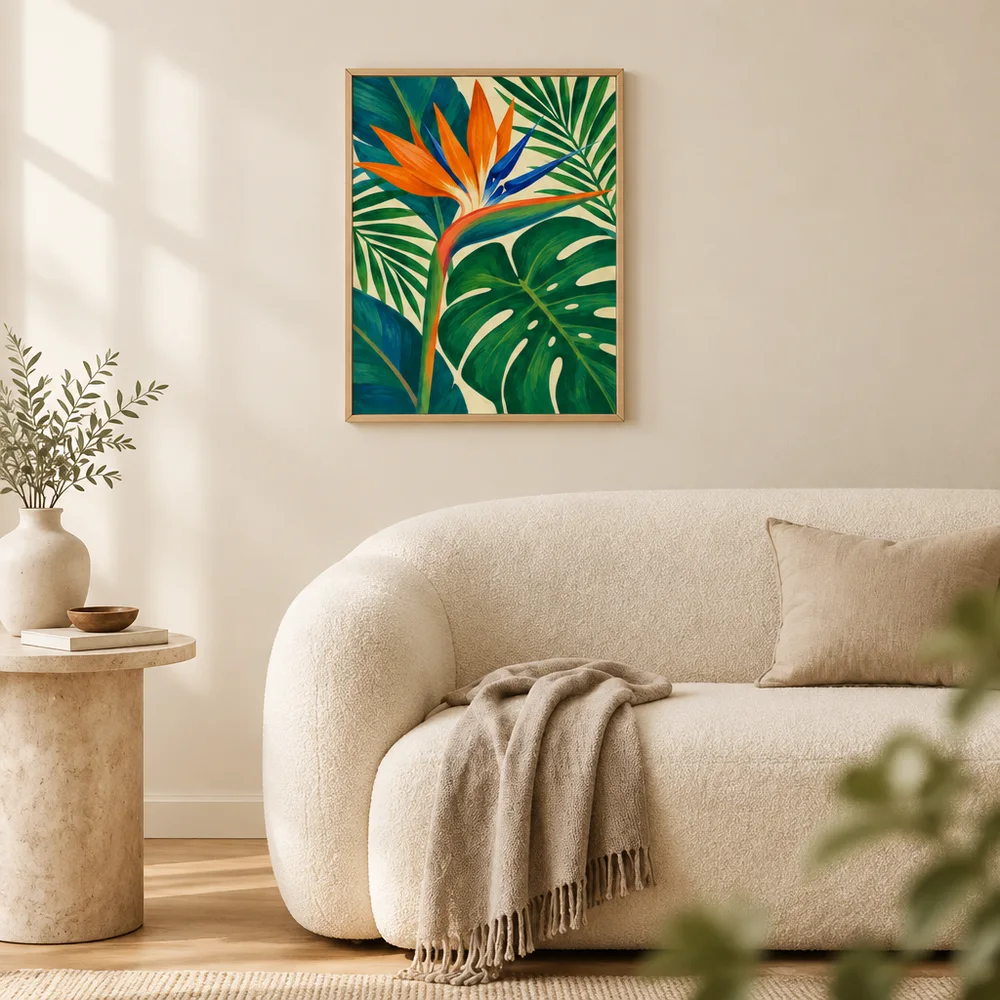
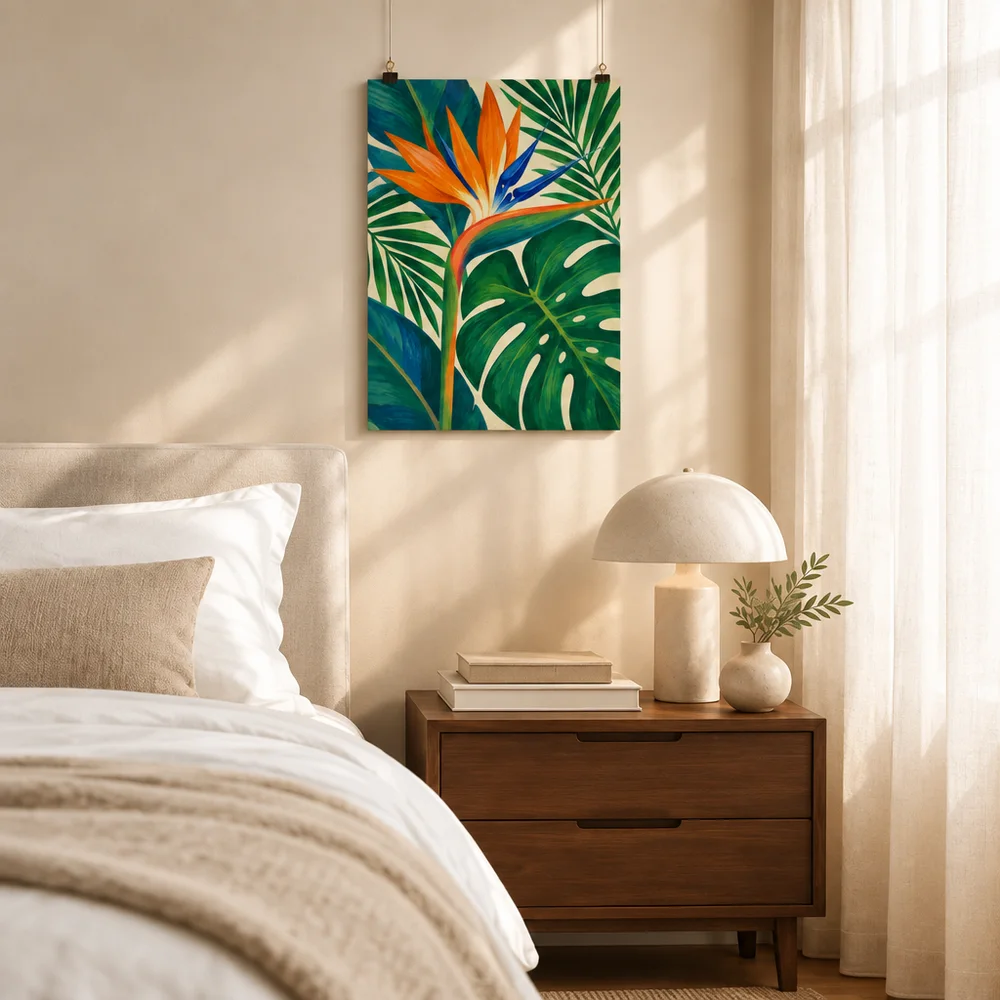
Mockups for digital downloads let shoppers picture printable art in a room before they buy. They are previews, not the files themselves. A useful listing makes that distinction clear while showing the design at a believable size, in a setting that helps the buyer imagine where it could go.
This is easy to get wrong with wall art. A framed print above a sofa looks like a physical product unless the listing explains what is included. A gallery wall can make a bundle feel valuable, but it can also leave buyers unsure whether they receive one file or several. Good mockups solve those questions instead of adding more.
Separate the Room Preview from the Download
A room scene shows how printable art might look after it is printed and displayed. It does not tell the buyer which digital files arrive after checkout. Make the delivery details clear in the listing and, when useful, include a separate image that summarizes the files, formats, sizes, or ratios in the download.
- Label or describe the item as a digital download when that is what you sell.
- Say whether the frame, printed poster, or other decor shown is not included.
- List the file types, dimensions, and ratios that buyers will receive.
- If the product is a bundle, show how many designs or files are included.
- Use only size examples that match the files you actually provide.
Do not make the room mockup carry all of this information. Keep one visual focused on the art in context and use a separate, simple graphic for the download contents. The buyer should not have to infer what is delivered from a styled photograph.
Choose a Room Scene That Supports the Artwork
Start with the likely buyer and where they might display the piece. A soft botanical print might suit a bedroom or reading area; bright graphic art might be clearer in a home office. Keep the room simple enough that the artwork remains the focal point, and avoid props that make the image feel like a different product.
Use the scene to give context, not to promise exact scale. Furniture and camera perspective can make a print appear larger or smaller than it is. If size matters, state the real dimensions and use a separate size graphic rather than relying on the room alone.
Build a Useful Preview Set for Printable Art
A simple set for a printable wall art listing can answer four different questions:
- What does the artwork look like? Show the complete design clearly, without a frame or room hiding the edges.
- How might it look on a wall? Use one room mockup that matches the design and keeps the print easy to see.
- What files are included? Summarize the actual designs, sizes, formats, or ratios in the download.
- What will not arrive? Clarify that the frame, furniture, and printed copy are only part of the preview if they are not included.
For a bundle, show a clear overview of the included designs as well as one or two room scenes. A single gallery-wall mockup can communicate that pieces belong together, but it should not be the only image explaining the bundle.
Keep Ratios and Artwork Details Consistent
Printable files may include different aspect ratios or size options. Make sure the art shown in a frame has the same composition as the file being sold. If one design is cropped to fit a square frame in the mockup, but the download is portrait, the preview can create the wrong expectation.
Generated images can also alter small details, colors, borders, or lettering. Compare the room scene with the original artwork. For a close-up, use a crop of the design file rather than asking an image model to invent paper grain or print texture that is not part of a digital download.
Create Real-Space Previews with a Mockup Tool
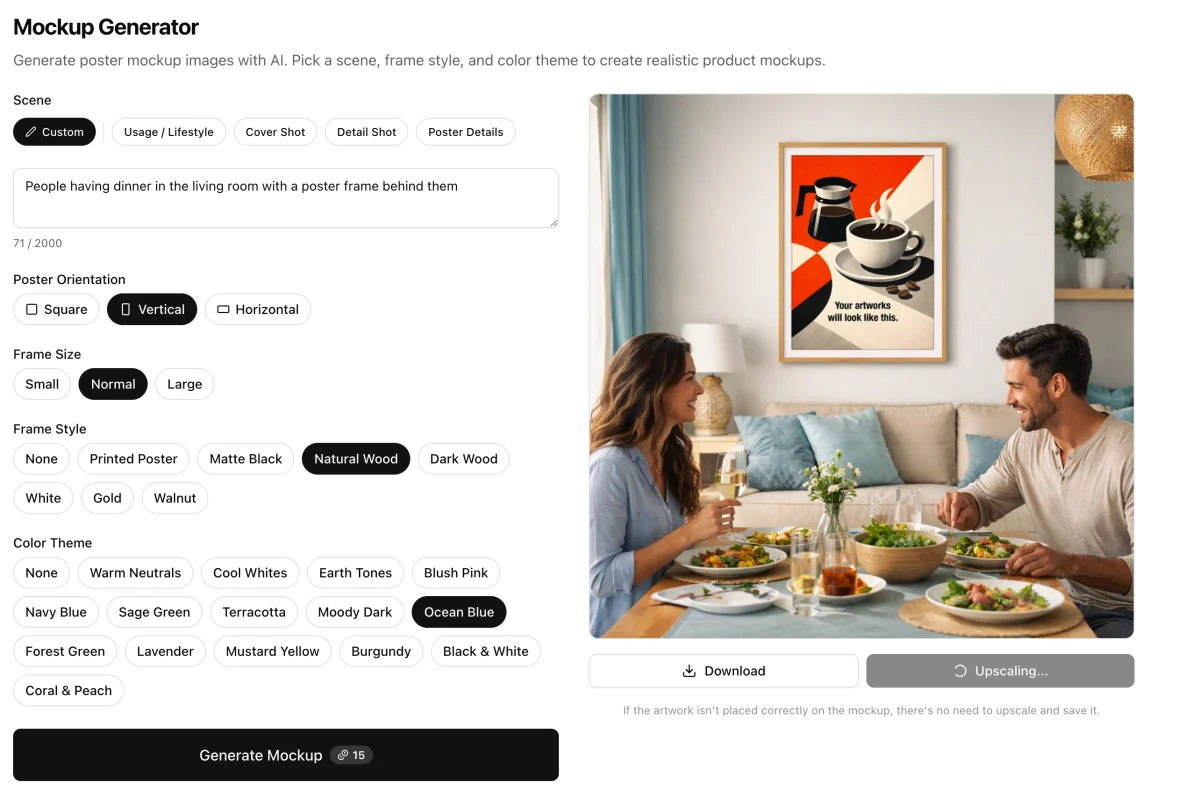
Louplr's Mockup Generator creates poster scenes with choices for the scene, frame style, and color theme. It can help show printable artwork in a room, while Mockup Placer is useful when you want to apply a design to an existing mockup image. In both workflows, check that the artwork remains faithful to the file and that the frame is not mistaken for part of the download.
Explore Louplr's AI Mockup Generator
Explore Louplr's Mockup Placer
If you are planning every image in the Etsy gallery, read the guide to building a complete listing image set from one design. For more on scale cues and product accuracy, see the companion guide to mockups that show scale, texture, and room context.
Plan a complete Etsy image set from one design
Learn how to show scale, texture, and room context
Mistakes to Avoid with Digital Download Mockups
- Showing a framed print without making clear that the frame is not part of the purchase.
- Using a room image as the only view of the printable file.
- Displaying a crop or ratio that does not match the files included.
- Implying that paper, canvas, or a physical product will be shipped when the item is digital.
- Using an AI-generated close-up to suggest a real material texture.
- Showing a bundle scene with more designs than the buyer will receive.
For a quick final check, open the listing as if you had never seen the product before. Can you tell that it is a download, what files are included, and what the room scene is meant to illustrate? If not, add a clearer product view or delivery summary before publishing.
Mockups for Digital Downloads FAQ
- Can I use a framed room mockup for a digital print listing?
- Yes, as a preview of how the printable art could look in a room. Make clear that the buyer receives digital files and whether the frame or printed poster is not included.
- What should I show in a digital download mockup?
- Show the artwork clearly, one realistic room context, and a separate summary of the files or designs included. Use actual dimensions and ratios from the download rather than implying them from the scene.
- Should I show the paper texture of printable art?
- A digital file has no physical paper surface. Show a close crop of the artwork itself, and only describe paper or finish if you also sell a physical printed product with that verified material.
- Can I show several print sizes in one mockup?
- You can show size options if those sizes are actually included or available. Keep the sizes clear and accurate, and do not rely on furniture or a frame in a generated room scene as a measurement.
- Which Louplr tool can create a room preview for printable wall art?
- Louplr's Mockup Generator is designed for poster scenes, while Mockup Placer applies a design to an existing mockup image. Review the artwork and listing details before publishing.
Show printable art in a room without obscuring what the buyer receives
Explore the Mockup GeneratorCreate a context preview, then clearly list the digital files included.