How to Generate Multiple Product Mockup Variations from One Design
About the author

Louplr Team
Louplr Team shares practical guidance from building AI workflows for prompts, artwork, mockups, and listings used in real print-on-demand production.
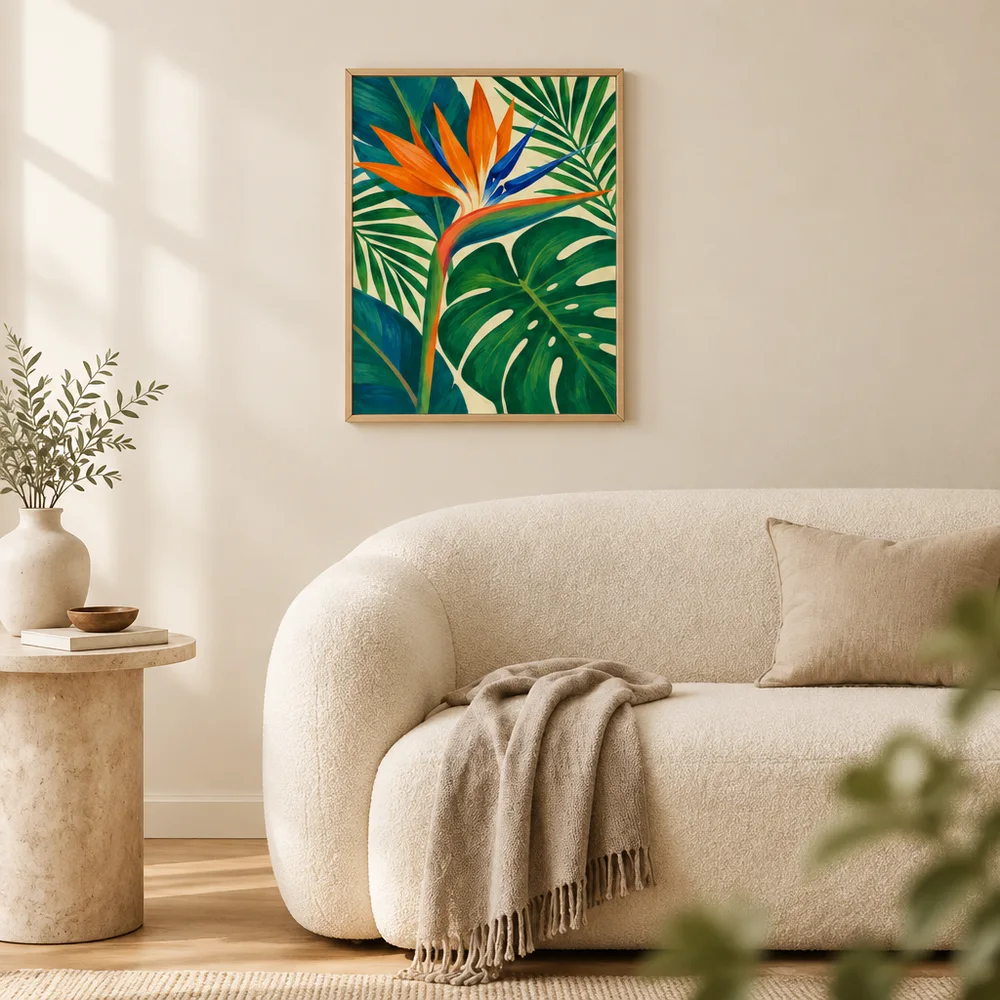
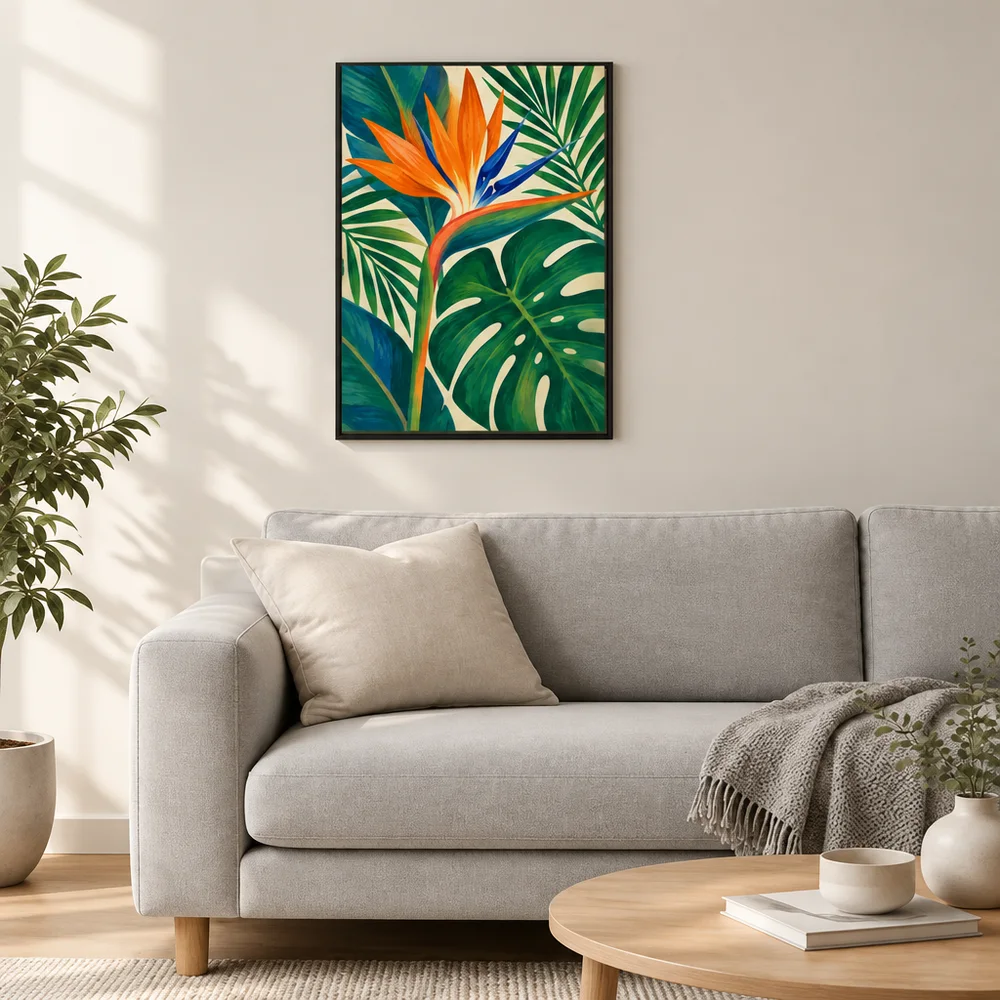
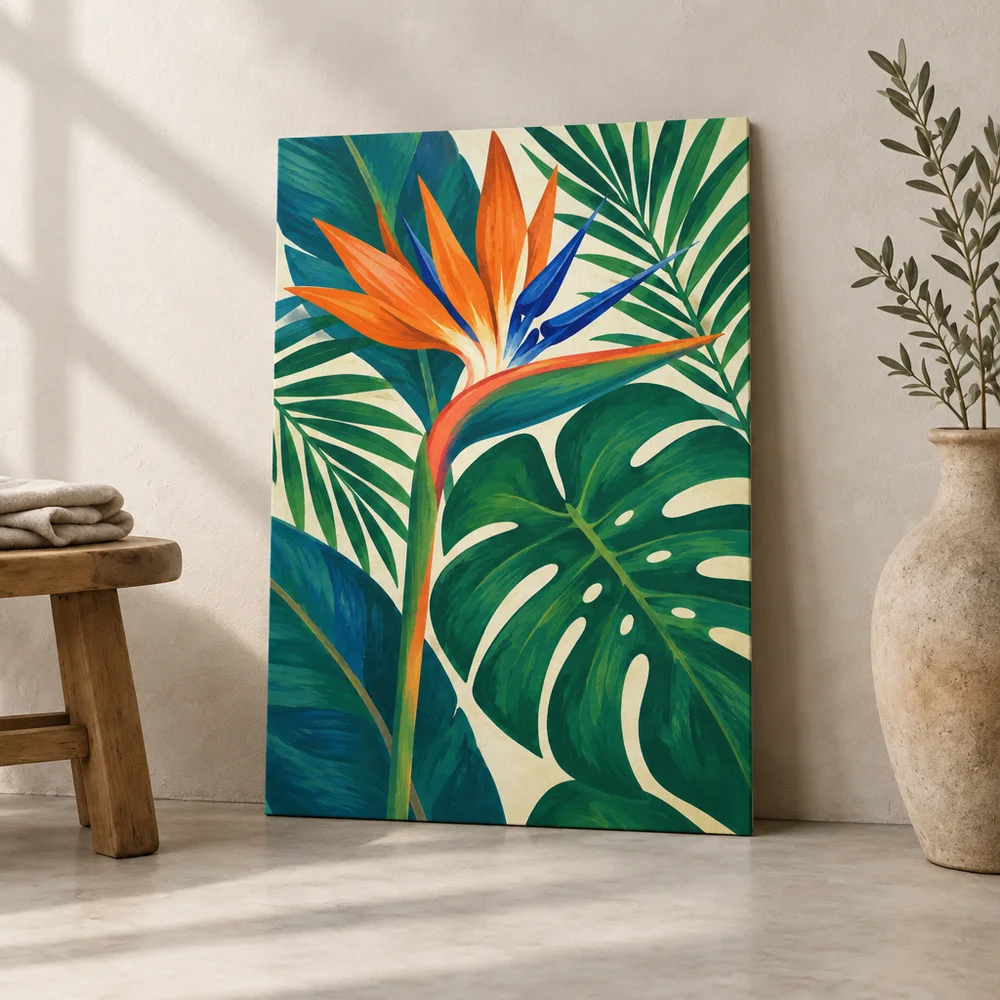
Generating multiple product mockup variations from one design is most useful when each variation tests a different presentation choice. Keep the artwork and product fixed, then change one scene element at a time, such as the room, camera distance, or lighting. That gives you options you can actually compare instead of a folder of unrelated images.
More outputs do not automatically make a better Etsy listing. Select images that add a new view or answer a new buyer question. Remove duplicates, inaccurate details, and scenes where the product becomes hard to recognize.
Decide What You Want to Compare
Start by writing one sentence about the choice you want to make. For example: Does this botanical print read more clearly on a light wall or a darker wall? Does a close view or a room view make the product easier to understand? A focused question makes it easier to plan a useful set of variations.
- Room or surface: keep the artwork and camera angle steady while changing the setting.
- Camera distance: compare a full product view with a closer crop.
- Lighting: test soft daylight against a more neutral studio-like scene.
- Color palette: change the background while protecting the product's actual colors.
- Composition: compare centered placement with another framing only if the whole product remains clear.
Do not vary all of these in one run if you want to learn from the results. Change one variable, review the outputs, and decide whether another comparison is worth making.
Keep the Product Constant
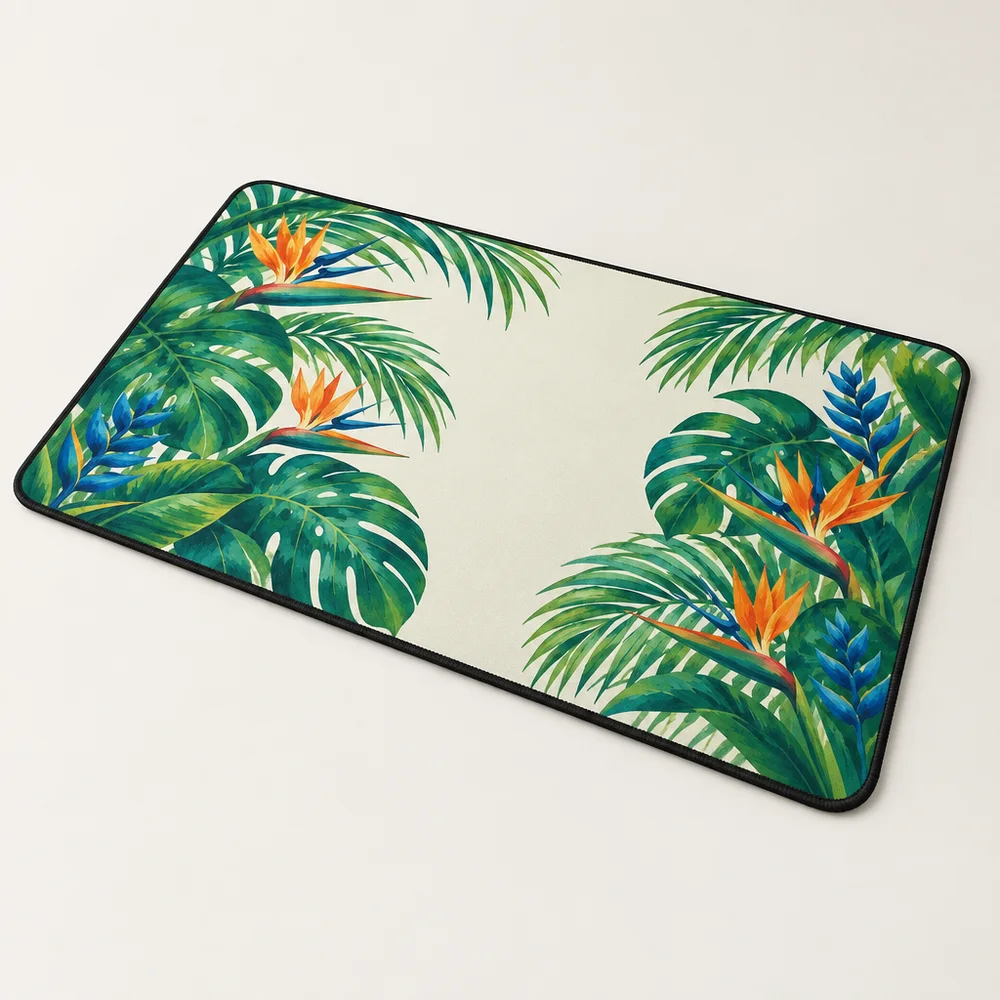
Use the same source design, product, variant, and output shape while you compare scenes. If the product itself changes between images, the scene is no longer the only difference. This matters for apparel colors, poster ratios, and products with different print areas.
AI generation can still change a design, even when the prompt asks it not to. Check line work, color, text, edges, and proportions in every output. If a detail is important to the product, use a prepared mockup or product reference image and reject any result that changes it.
Create Variations with Prompts or a Saved Pack
A custom prompt is convenient for a small, one-off comparison. A saved mockup pack is useful when you want a repeatable set of scene prompts or plan to process several designs through related options. Make each prompt distinct enough to produce a meaningful variation, but keep the product presentation rules stable.
For example, a poster pack might include a straight-on living room view, a close room context, and a quiet home office scene. Those are three different uses of the same design, not three descriptions of the same room with a different vase.
A Simple Variation Workflow
- Choose one design and one product variant to use throughout the comparison.
- Write the scene question you want to answer before generating.
- Keep the prompt structure stable and change only the scene detail being tested.
- Generate a small set, then compare outputs at both thumbnail and full size.
- Discard images that alter the product or repeat another view.
- Use the strongest distinct images in the listing and save useful prompts for the next related product.
This is a creative review process, not a guarantee of improved ranking or sales. If you later compare listing performance, consider the whole listing and give changes enough time to collect useful data. A new image can affect how people respond, but traffic, price, search placement, and the product itself also matter.
How to Select the Images Worth Keeping
Review the set side by side. Ask whether each image makes the product clearer, more believable, or easier to imagine in use. A good variation is not merely different. It contributes something the other images do not.
- The artwork and product match the source and selected variant.
- The product remains visible at thumbnail size.
- The scene fits the intended buyer and product category.
- The image adds information instead of duplicating an earlier view.
- No props or generated details imply that an unlisted item is included.
Use Louplr for Prompt-Driven Mockup Options
Louplr's Mockup Generator supports custom scene prompts and saved mockup packs for creating poster scenes. In Mockup Studio, product mockup workflows can use a selected saved product and prompt-driven scenes. Choose the path that fits your item, generate controlled options, and inspect each image before adding it to a listing.
Explore Louplr's AI Mockup Generator
For prompt-writing examples and the difference between a one-off prompt and a saved pack, see the AI mockup generator guide. For a reusable workflow across a collection, read the article on creating consistent mockup scenes.
Read the prompt and saved-pack guide
Build consistent mockup scenes across a collection
Product Mockup Variations FAQ
- How many mockup variations should I generate for one design?
- Start with a small set that answers one clear scene question. Generate more only when a new variation adds a distinct view or useful information.
- How can I compare AI mockup variations fairly?
- Keep the source design, product, and variant fixed. Change one scene element at a time and review the outputs at the same size.
- Can I use several generated mockups in one Etsy listing?
- Yes, when each image is accurate and adds useful context. Avoid near-duplicates and follow Etsy's current listing-image requirements.
- Do different mockup images count as an Etsy A/B test?
- Not by themselves. A set of images in one listing is not a controlled test. If you compare listing performance over time, account for other changes and do not assume one image caused every difference.
- Should I use a custom prompt or a saved mockup pack?
- Use a custom prompt for a one-off scene or small comparison. Use a saved pack when you want reusable prompts across related designs or products.
Create a few distinct mockup options from one design
Explore the Mockup GeneratorKeep the product fixed, compare the scenes, and save only the useful variations.