How to Build a Reusable Mockup Pack for a New Product Collection
About the author

Louplr Team
Louplr Team shares practical guidance from building AI workflows for prompts, artwork, mockups, and listings used in real print-on-demand production.
A reusable mockup pack is a small, named set of scene prompts you can use again for related products. It saves you from starting every scene from a blank prompt and gives a new collection a shared visual direction. The best packs are planned around one product category and contain distinct views, not a dozen versions of the same room.
Before building a pack, decide what it is for. A set for framed posters should not be treated as a universal prompt list for apparel, mugs, and phone cases. Different products need different camera angles, scale cues, and product details.
Plan the Pack Before Writing Prompts
Start with a short brief: product category, likely buyer, collection mood, and the kinds of images the listings need. Then choose a manageable number of scene roles. For a wall art collection, that could be a clear room view, a quieter alternate room, and a closer composition. For apparel, it could be a product view and a lifestyle context, with accurate product references.
- Choose one product category and avoid mixing unrelated items in the same pack.
- Decide which scene details should remain consistent, such as lighting or background palette.
- Give each prompt a distinct job, such as full product, room context, or closer detail.
- List the product features that must not change, including shape, artwork, or variant.
- Leave room to remove prompts that generate near-duplicates or misleading images.
Write Prompts That Work as a Set
Use a shared prompt structure so the scenes feel related, then vary one clear element in each prompt. A simple structure is: product and placement, environment, camera angle, lighting, and accuracy limits. Keep the wording around the product stable while changing the setting or view.
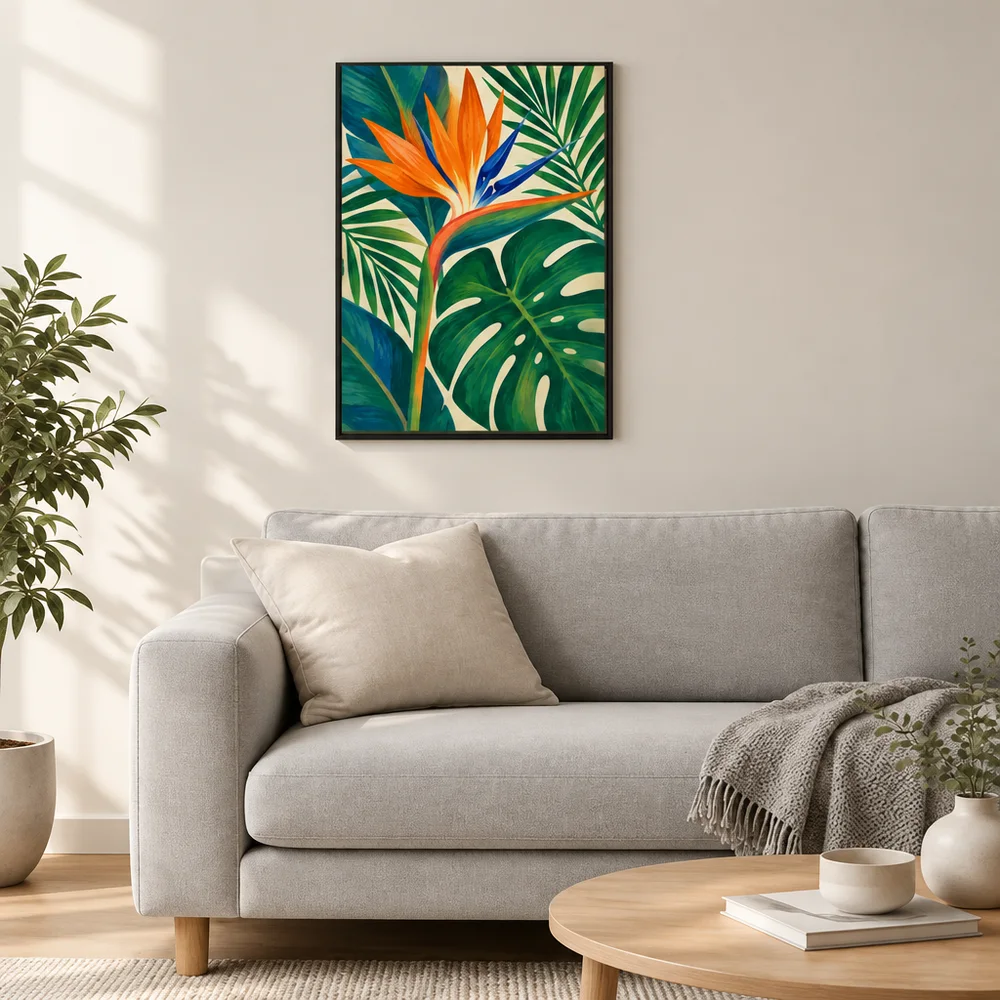
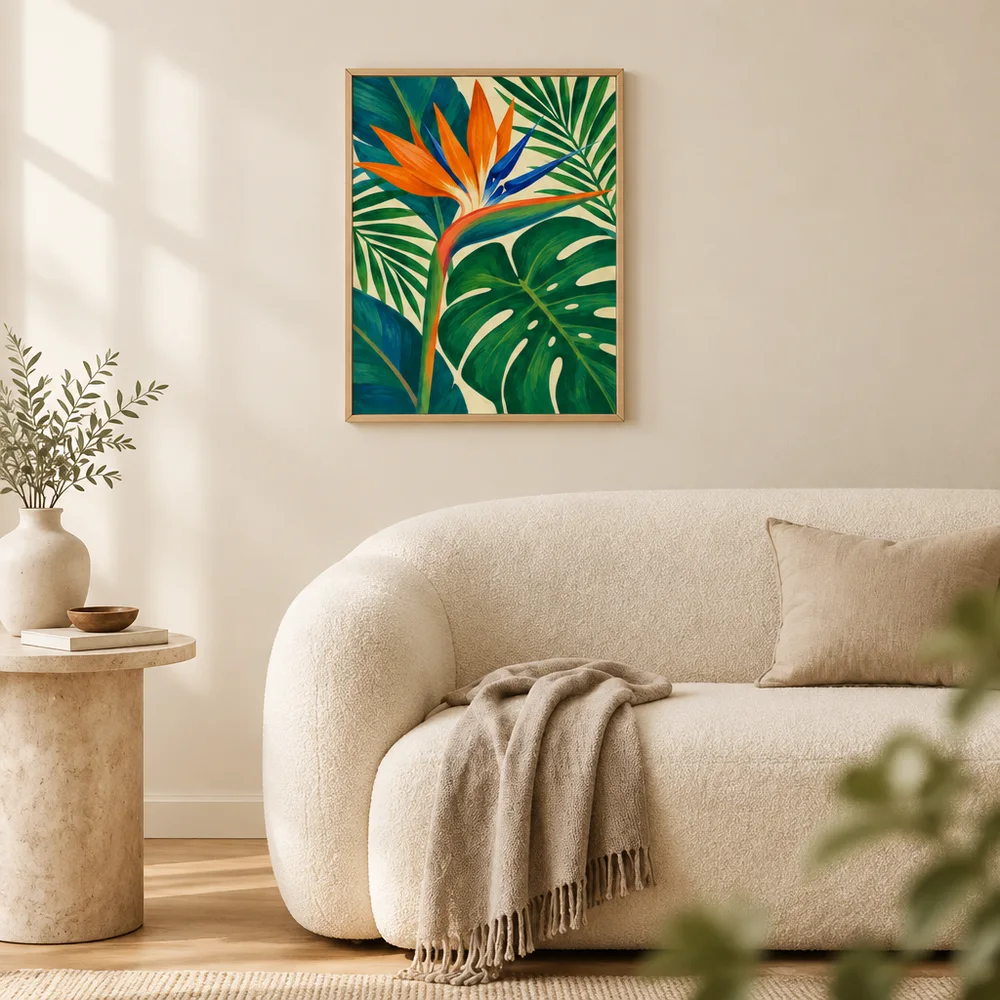
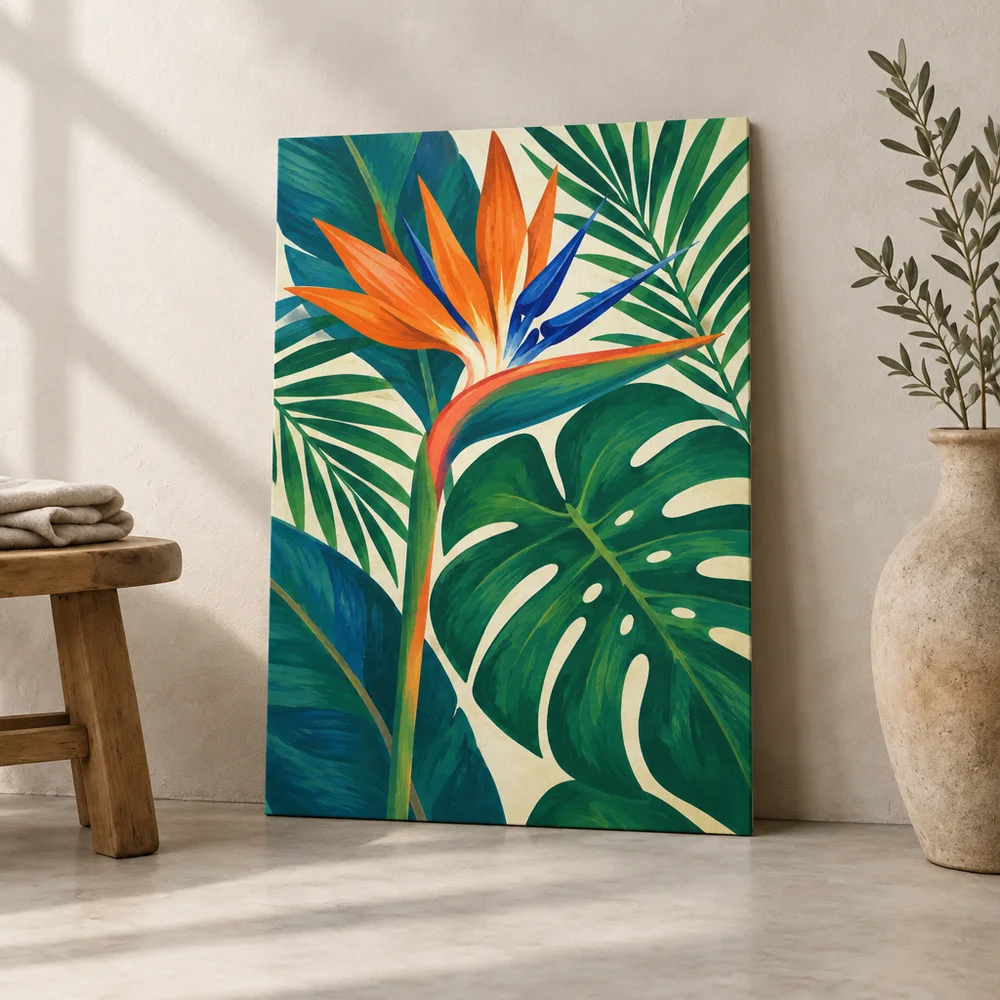
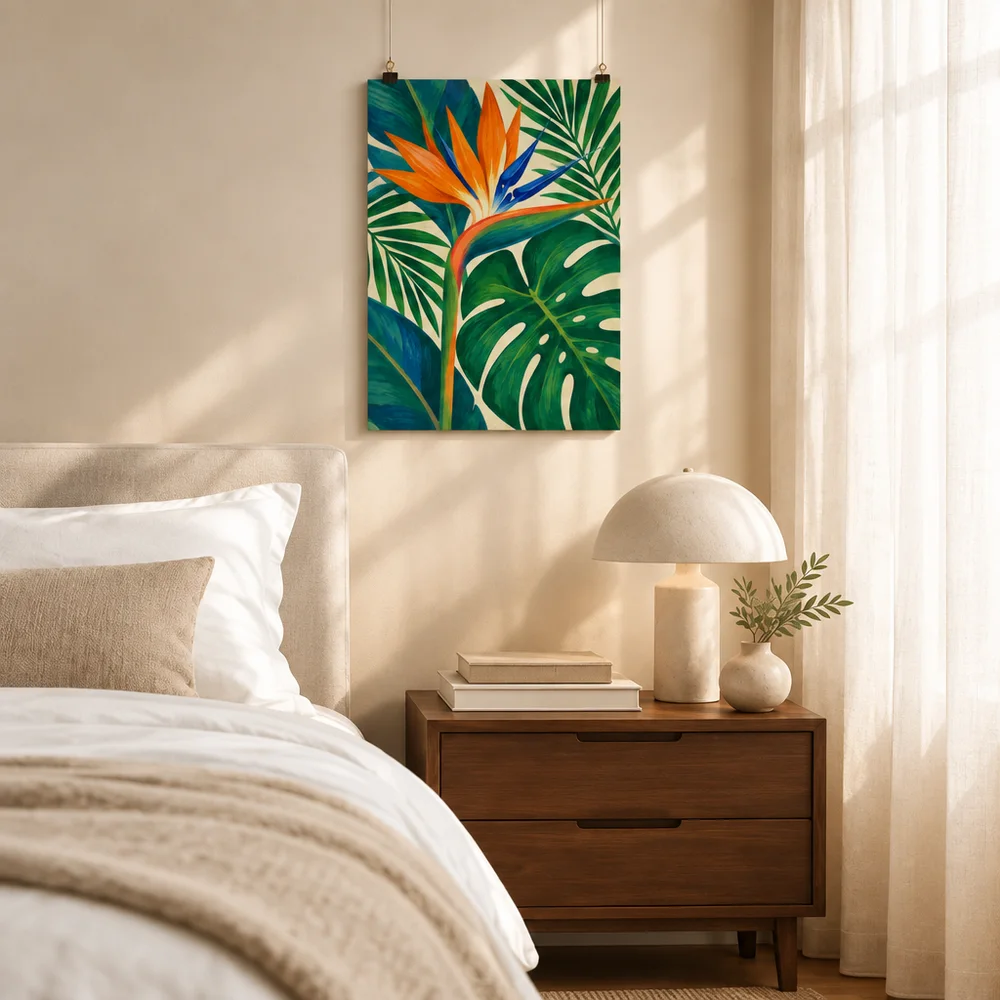
For example, a poster pack could include one straight-on view in a bright living room, one wider view in a home office, and one closer view with less decor. All three can share the same frame style and natural light while showing a different context.
Avoid vague prompts such as beautiful room or trendy product shot. Add enough detail to make the intended scene understandable, but do not list so many props that the product disappears. If the model repeatedly changes the same detail, simplify the prompt or use a more controlled product mockup.
Create, Edit, and Save the Pack in Mockup Studio
In Louplr's Mockup Studio, the mockup pack form lets you choose a product category, add a title, and prepare scene prompts. You can write prompts yourself, ask AI to draft prompts with extra details, or analyze an existing mockup image to generate scene ideas. Review and edit the prompts before saving them as a reusable pack.
Treat generated prompts as drafts. Make sure the pack matches the product category, remove repeated scenes, and add constraints that protect product details. A saved pack is a reusable starting point; it does not guarantee identical results every time it is used.
Test the Pack on More Than One Design
Run the prompts on a small selection of designs from the collection before applying them everywhere. A prompt that works for a bold botanical print may create clutter around a fine-line illustration. Testing a few different designs can show whether the scene rules are flexible enough for the collection.
- Check whether the product remains visible across different artwork colors and compositions.
- Look for repeated framing or room details that make the outputs feel interchangeable.
- Compare each result with the source design and product reference.
- Remove prompts that consistently hide, distort, or misrepresent the product.
- Save revised prompts only after they work for more than one relevant design.
Name Packs So You Can Find Them Later
Use a title that describes the product category and scene direction, not a temporary campaign slogan. Names such as Botanical Posters - Soft Daylight or Desk Accessories - Clean Workspace make it easier to choose the right pack later. If you revise the prompts substantially, save a clearly named updated version rather than forgetting which set was tested.
Keep a short note about the intended use of the pack, especially when it is for a specific variant or product family. That reminder can prevent a useful poster scene from being applied to a product with a different shape or presentation need.
Common Mockup Pack Problems
- The prompts differ only in small decor details and create near-identical images.
- The pack mixes product categories that need different views or dimensions.
- Generated prompts add accessories, finishes, or features that the listing does not include.
- Every image uses the same crop, leaving buyers without a clean product view.
- The pack is saved before the prompts have been tested with real designs.
A useful pack is small enough to understand and specific enough to reuse. If it starts producing images that look interchangeable or inaccurate, edit the prompts instead of adding more.
For a set of scene variations from one design, read the guide to generating multiple mockups. For collection-wide framing and lighting rules, see the article on consistent AI mockup scenes.
Generate multiple mockup variations from one design
Create consistent mockup scenes across an Etsy collection
Reusable Mockup Pack FAQ
- What is a reusable mockup pack?
- It is a saved set of scene prompts for generating related product mockups. Sellers reuse it for products in the same category or collection, then review each output for accuracy.
- How many prompts should a mockup pack contain?
- Use enough prompts to cover distinct scene roles, but avoid adding near-duplicates. Start with a manageable set, test it on several designs, and expand only if another prompt adds a useful view.
- Can AI create mockup pack prompts for me?
- Louplr's pack form can draft prompts after you choose a product category and provide optional details. You can also analyze an existing mockup image for scene ideas. Review and edit generated prompts before saving.
- Should I use one mockup pack for every product category?
- No. Posters, apparel, drinkware, and accessories need different framing and product details. Create packs around a specific product category or closely related product family.
- Will a saved pack produce identical mockups every time?
- No. A pack reuses prompts, but image generation can vary. Check each output against the product, artwork, and listing before publishing.
Build reusable scene prompts for your next product collection
Open Mockup StudioChoose a category, refine the prompts, and test the pack before reusing it.