Choosing AI Mockup Scenes for Different Etsy Product Categories
About the author

Louplr Team
Louplr Team shares practical guidance from building AI workflows for prompts, artwork, mockups, and listings used in real print-on-demand production.
The best AI mockup scene depends on the product being sold. A room scene can help a wall print feel at home, while a phone case needs a clear view of its shape and camera opening. Choose the scene to show the item's most important feature, then check the generated result against the actual product.
A single generic setup rarely works for a whole Etsy shop. Different products have different dimensions, surfaces, and uses. A good scene makes those differences easier to understand rather than hiding them behind styling.
Match the Scene to the Product's Main Question
Before you write a prompt, identify the one thing a shopper needs to see first. Is it the artwork in a room, the print on a garment, the wrap around a mug, or the edges and fit of a phone case? That answer should guide the background, camera angle, and distance.
Wall art and framed posters
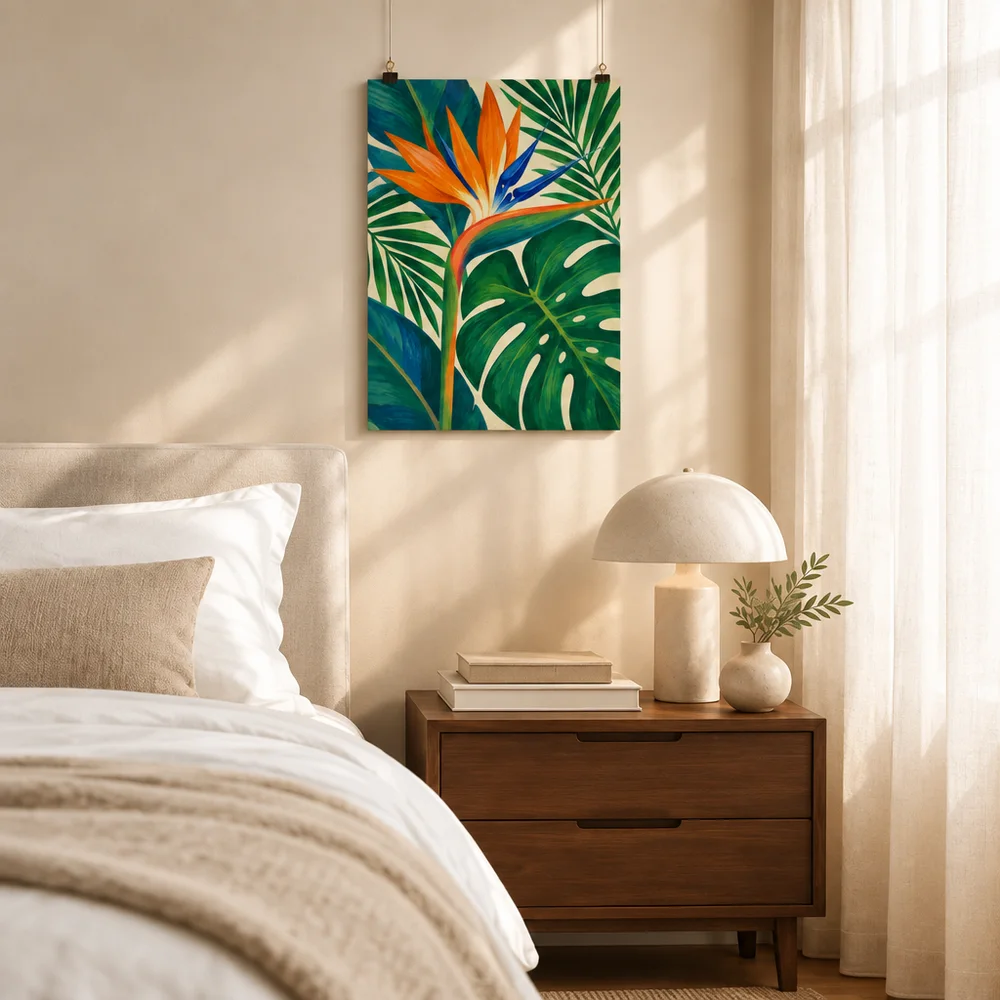
Use a room that fits the artwork's audience and leave enough space around the frame to see the full design. A straight-on view is useful when shoppers need to inspect the art; a wider room view can add context. Show dimensions separately because furniture and camera perspective are not precise measuring tools.
Apparel
Choose a view that keeps the garment shape and print placement visible. A worn scene can show use, but do not treat an AI model as evidence of exact fit, color, or fabric. Use provider images or a sample for product details, and check the print against the selected garment variant.
Mugs and drinkware
Show the mug's shape, handle, and visible print area. A hand or table can provide context, but keep the product large enough in the frame to inspect. If a design wraps around the item, use an additional angle or product view that shows the wrap without implying an unsupported color or finish.
Phone cases and small accessories
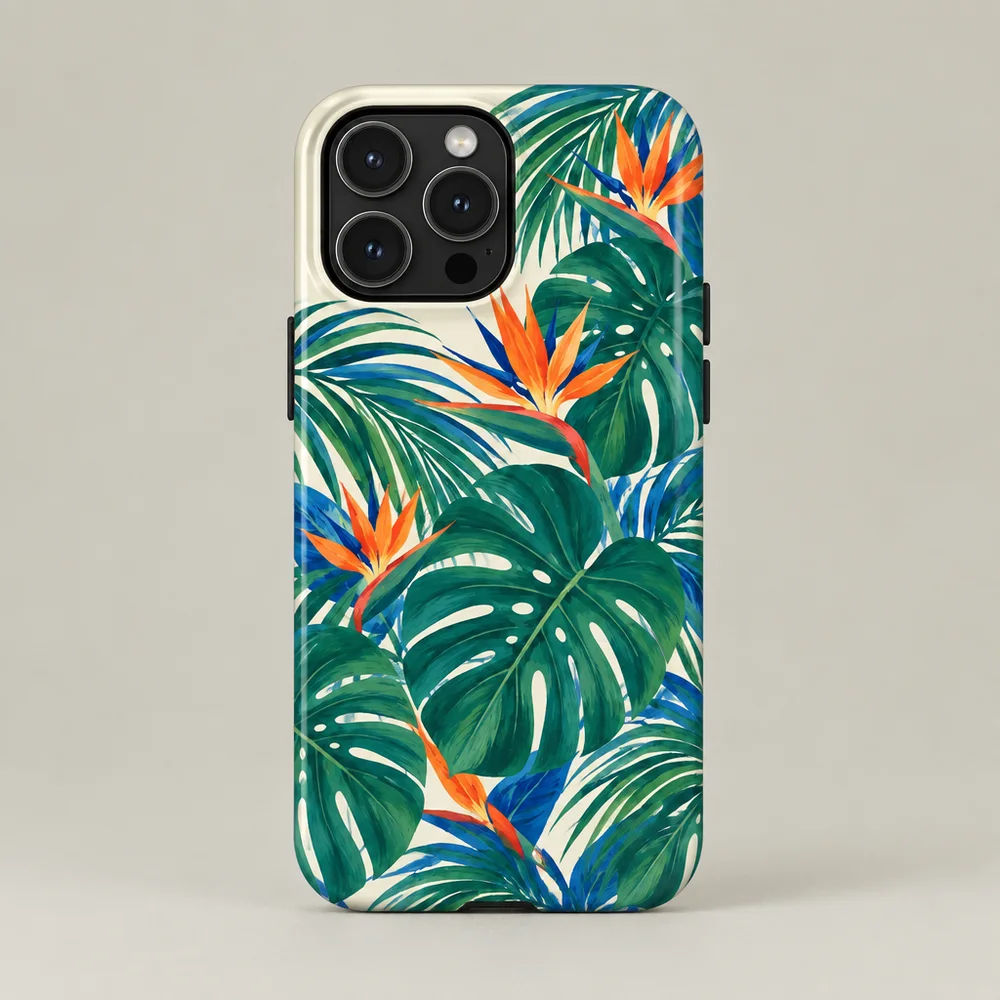
Keep the product edges, openings, and compatibility details visible. For a phone case, the camera cutout and device shape matter as much as the artwork. Avoid a scene where the case is too small to identify or where a generated camera opening no longer matches the real product.
Desk mats, pillows, and home products
Show the whole product boundary and enough of the surface to understand where the design appears. A desk scene can help explain how a mat is used; a sofa or bed can help place a pillow in a room. Keep props secondary and verify that the design's scale and placement match the product.
Choose an AI Scene or an Accurate Product Mockup
AI-generated scenes are useful when setting and mood help explain the product. A prepared product mockup is a better starting point when exact shape, print placement, or product details matter. A real product photo is the strongest choice for claims about material, fit, or finish that a generated image cannot verify.
Louplr's public Mockup Generator is designed for poster scenes. In Mockup Studio, product mockup workflows use a selected saved product and can include available product reference images. Mockup Placer is useful when you already have an image to place artwork on. Choose based on the product and the level of accuracy the listing needs.
Explore Louplr's AI Mockup Generator
Explore Louplr's Mockup Placer
A Short Scene-Brief Template
Use a short brief before writing the final prompt: product category, buyer use case, view needed, background, camera angle, and details that must remain visible. For a phone case, that might be the whole case, the camera opening, a neutral tabletop, and a top-down view. For a framed print, it might be the full frame, a room that suits the artwork, and a straight-on camera.
Keep the prompt focused. A crowded list of props, colors, and styles can distract the image model from the product itself. Generate a scene, inspect it, and refine only the element that needs to change.
Review These Details for Every Product
- The scene shows the correct product category and selected variant.
- The product's shape, openings, edges, or print areas match the reference.
- The artwork has not been stretched, recolored, or covered by a prop.
- The image does not invent a material, feature, or included accessory.
- The background supports the intended buyer and leaves the product easy to see.
- Size and compatibility claims are stated separately using verified product details.
If the generated scene fails one of these checks, change the scene or switch to a more controlled mockup. A visually polished image is not useful if it shows the wrong version of the product.
For more on product-specific photo order, see the print-on-demand listing image guide. The apparel guide covers garment fit and placement in more detail.
Choose an Etsy photo order for print-on-demand listings
Read the apparel mockup accuracy guide
AI Mockup Scenes by Product Category FAQ
- Can I use the same AI mockup scene for every Etsy product?
- It is better to choose a scene for the product category. A room scene may suit wall art, but apparel, drinkware, and accessories need views that show their own shape and use.
- Which mockup scene works best for wall art?
- Choose a room that fits the artwork and keep the full frame easy to see. Use a separate view for the complete design and state actual dimensions outside the room scene.
- Can AI mockups accurately show apparel fit or product color?
- Not reliably without accurate references and review. Use provider images, product samples, or verified variants for fit, color, and material details.
- What should a phone case mockup show?
- Keep the case shape, edges, camera opening, and design placement visible. Compatibility and device-model information should come from the actual product details.
- When should I use a real product photo instead of an AI scene?
- Use a real photo or verified supplier image when shoppers need evidence of a specific material, fit, finish, or physical feature that a generated scene cannot confirm.
Choose a mockup workflow that fits the product category
Explore Mockup PlacerStart with the product details, then choose a scene that makes them easy to see.